

Why Can I Hear Myself in My Headset? Causes, Fixes, and the Role of Sidetone in 2026
Hayley Spooner, Jul 21, 2026

Key takeaways
- Hearing your own voice through a headset isn’t always a problem—it may be an intentional feature called sidetone.
- Sidetone lets you hear your voice naturally, while echo is an unwanted audio delay that usually requires troubleshooting.
- Most headset echo issues can be resolved by adjusting audio settings, checking device configuration, or improving room acoustics.
- Enterprise collaboration systems use intelligent echo cancellation and AI-powered audio processing to reduce distractions automatically.
- Understanding the difference between sidetone and echo can help you diagnose audio issues more quickly.
- Great meeting audio depends on the entire collaboration experience—not just your headset.
Introduction
Have you ever joined a video call, started speaking, and immediately heard your own voice through your headset?
If so, you’re not alone. One of the most common questions people ask during video meetings is: “Why can I hear myself in my headset?”
The answer depends on how you’re hearing yourself.
In some cases, it’s completely normal. Many professional headsets include a feature called sidetone, which intentionally lets you hear a small amount of your own voice. This makes conversations feel more natural and helps prevent users from speaking too loudly.
In other cases, hearing yourself may indicate an audio problem such as microphone monitoring, acoustic feedback, or echo caused by your meeting setup.
Understanding the difference is important because the solutions are completely different. Disabling sidetone when it’s working as intended may actually make calls feel less comfortable, while ignoring genuine echo can make meetings distracting for everyone involved.
This guide explains why you might hear your own voice, how to tell whether it’s sidetone or echo, and what you can do to improve your audio experience in 2026.
Why can I hear myself in my headset?
The most common reason you hear yourself is either because sidetone is enabled or because there’s an audio configuration issue causing echo.
Although the two experiences can sound similar, they’re very different.
Scenario 1: Sidetone (normal)
Sidetone is an intentional feature built into many business and premium consumer headsets.
It feeds a small amount of your microphone audio back into your headphones in real time, allowing you to hear your own voice naturally while speaking.
Without sidetone, noise-isolating headsets can make users feel as though they’re talking with their ears covered, often causing them to speak much louder than necessary.
Sidetone typically sounds:
- Immediate
- Natural
- Low volume
- Free from noticeable delay
Many people use sidetone every day without even realising it’s enabled.
Scenario 2: Echo (problem)
Echo is different.
Instead of hearing your voice naturally, you hear it repeated after a short delay.
This usually indicates an audio issue somewhere within your meeting setup rather than an intentional feature.
Common causes include:
- Incorrect audio settings
- Microphone monitoring
- Speakers feeding sound back into microphones
- Multiple connected audio devices
- Acoustic reflections in meeting rooms
- Software or driver issues
Unlike sidetone, echo often becomes distracting and can make conversations difficult to follow.
Sidetone vs echo at a glance
Understanding the difference helps you troubleshoot the right problem.
| What you’re hearing | Is it normal? | What it usually means | Action required |
| Your voice instantly and quietly | Yes | Sidetone | Usually none |
| Your voice with a noticeable delay | No | Echo or audio routing issue | Investigate audio settings |
| Other participants hear themselves | No | Acoustic echo | Check speakers and microphones |
| Everyone hears repeated audio | No | Meeting room or platform issue | Review room setup and conferencing settings |
| Voice volume feels natural while wearing headphones | Yes | Sidetone working correctly | No action needed |
What is sidetone?
Sidetone is a feature that plays a controlled amount of your own voice back through your headset while you speak.
Although it can surprise people who haven’t experienced it before, sidetone has been used in professional communications for decades.
Call centres, broadcast environments, and enterprise communication systems have long relied on sidetone because it creates a more natural speaking experience.
Today, many premium headsets include adjustable sidetone settings that allow users to increase, reduce, or disable the feature according to personal preference.
Why does sidetone exist?
When wearing closed-back or noise-isolating headphones, your own voice becomes muffled because your ears are physically blocked.
Without hearing yourself naturally, you may:
- Speak too loudly
- Feel disconnected from conversations
- Experience greater vocal fatigue during long meetings
Sidetone restores some of that natural feedback, making conversations feel more comfortable and reducing the need to raise your voice.
This is especially useful for employees who spend much of the day on video calls or customer calls.
Can you adjust sidetone?
Many business headsets allow users to customise sidetone through manufacturer software or device settings.
Depending on the model, you may be able to:
- Turn sidetone on or off
- Increase or decrease sidetone volume
- Create audio profiles for different working environments
Whether you should adjust it comes down to personal preference. Some users prefer hearing a small amount of their own voice, while others find it distracting.
How to tell if it’s sidetone or echo
The easiest way to identify the problem is by listening for timing.
If you hear your voice immediately as you speak, you’re almost certainly hearing sidetone.
If there’s even a slight delay before your voice repeats, you’re likely experiencing echo or another audio issue.
The following comparison can help you identify the cause.
| Symptom | Most likely cause |
| You hear your voice instantly while speaking | Sidetone |
| Your voice repeats after a short delay | Echo |
| Other people say they hear themselves | Acoustic echo from your setup |
| Echo only happens during certain meetings | Conferencing software or device configuration |
| The issue disappears when changing headsets | Headset hardware or software settings |
| The issue only happens when using speakers | Speaker-to-microphone feedback |
Understanding these differences can save considerable troubleshooting time and prevent unnecessary changes to headset settings.
Common causes of headset echo
If you’re hearing delayed audio rather than sidetone, several factors could be responsible.
Microphone monitoring
Some operating systems and headset software include microphone monitoring features that send your microphone signal directly back to your headphones.
Unlike sidetone, these settings aren’t always optimised for natural conversation and may introduce noticeable delays.
Multiple audio devices
Having several microphones or speakers connected simultaneously can confuse conferencing software.
For example, your meeting platform may use your headset microphone while accidentally sending audio through your laptop speakers, creating unwanted feedback.
Speaker volume that’s too high
Using external speakers at high volume can allow sound to re-enter nearby microphones, producing acoustic echo that other participants may hear.
This is one of the most common causes of echo during video conferences.
Software configuration issues
Audio routing problems within conferencing platforms or operating systems can occasionally create duplicated audio paths, particularly after software updates or hardware changes.
Checking the selected microphone, speakers, and audio devices often resolves these issues.
Outdated firmware or drivers
Headsets, docking stations, and conferencing devices all rely on firmware and drivers to manage audio correctly.
Keeping devices up to date helps prevent compatibility issues that may affect microphone performance or introduce unwanted audio behaviour.
Room acoustics
In meeting rooms, hard surfaces such as glass walls, concrete floors, and large tables can reflect sound back into microphones.
Without effective echo cancellation, these reflections may be heard by remote participants as distracting echo rather than natural conversation.
How to fix headset echo
Most headset echo problems can be resolved by adjusting settings rather than replacing your equipment.
If you’re hearing delayed audio instead of normal sidetone, work through the following troubleshooting steps. In many cases, the issue can be identified within a few minutes.
Check your headset settings
Many business headsets include companion software that allows you to configure features such as sidetone, microphone sensitivity, and audio processing.
Review your headset settings to ensure:
- Sidetone is configured as you prefer.
- Microphone monitoring isn’t enabled unintentionally.
- The headset firmware is up to date.
- Audio enhancements are configured correctly.
If you’re unsure whether sidetone is enabled, temporarily adjusting or disabling it can help determine whether it’s the source of what you’re hearing.
Review your operating system audio settings
Incorrect audio routing is a common cause of echo.
Check that your computer is using the correct:
- Microphone
- Speakers or headset
- Default communication device
If multiple audio devices are connected, disconnect any that aren’t required for the meeting and restart your conferencing application.
Check your video conferencing platform
Most collaboration platforms include built-in audio processing designed to minimise echo and improve voice quality.
Verify that:
- The correct microphone and speaker are selected.
- Noise suppression is enabled where appropriate.
- Audio settings haven’t changed following a software update.
- You’re running the latest version of the application.
Many platforms also include built-in audio tests that can quickly identify configuration problems before joining a meeting.
Reduce speaker feedback
If you’re using external speakers instead of a headset, reducing feedback is essential.
To minimise acoustic echo:
- Lower speaker volume.
- Position microphones away from speakers.
- Avoid placing microphones directly in front of displays.
- Use headsets when working in noisy environments.
These small adjustments often have a significant impact on meeting quality.
Keep devices updated
Firmware and software updates frequently improve audio performance, compatibility, and echo cancellation.
Regularly updating your:
- Headset
- Docking station
- Meeting room devices
- Operating system
- Collaboration software
helps ensure the latest audio improvements are available.
Test another device
If problems continue, try joining the same meeting using another headset or another computer.
If the issue disappears, you’ve narrowed the problem to a specific device rather than your conferencing platform or network.
Systematically testing one variable at a time makes troubleshooting much faster than changing multiple settings simultaneously.
How enterprise meeting systems reduce echo
The best collaboration experiences minimise echo automatically rather than relying on users to adjust settings.
While sidetone is primarily a headset feature, meeting room audio presents a different challenge.
In shared spaces, microphones and speakers operate within the same room, increasing the risk of unwanted audio reflections and feedback.
Modern collaboration systems address these challenges using intelligent audio technologies such as:
Acoustic Echo Cancellation (AEC)
AEC continuously removes echoes caused by meeting room speakers, preventing remote participants from hearing their own voices reflected back.
This happens automatically during the meeting without requiring user intervention.
Beamforming microphones
Rather than capturing sound equally from every direction, beamforming microphone arrays focus on active speakers while reducing background noise.
This improves voice clarity while helping reduce unwanted room reflections.
Noise suppression
AI-powered noise suppression removes distracting sounds such as:
- Keyboard typing
- HVAC systems
- Traffic noise
- Office conversations
- Background activity
This allows participants to focus on the conversation instead of environmental distractions.
Intelligent voice processing
Modern collaboration devices combine multiple audio technologies to continuously optimise meetings.
Instead of simply amplifying voices, they analyse the acoustic environment and adjust audio processing in real time.
The result is more natural conversations with fewer interruptions and significantly less manual troubleshooting.
Common mistakes to avoid
Not every audio issue has the same cause, so treating every problem as “echo” often leads to unnecessary troubleshooting.
Some of the most common mistakes include:
Assuming sidetone is a fault
Many users disable sidetone immediately because they believe hearing themselves indicates a problem.
In reality, sidetone is often working exactly as intended and can make conversations feel more natural.
Replacing a headset too quickly
Echo is frequently caused by software settings, audio routing, or room acoustics rather than faulty hardware.
Checking configuration before purchasing new equipment can save both time and money.
Ignoring microphone placement
Even the best microphones perform poorly when positioned incorrectly.
Keeping microphones away from loudspeakers and reducing unnecessary room reflections can dramatically improve meeting quality.
Using laptop speakers in larger meetings
Laptop speakers may be suitable for individual calls but often struggle in shared meeting spaces.
Purpose-built collaboration systems are designed to manage echo, microphone coverage, and room acoustics far more effectively.
Focusing only on the headset
Great meeting audio depends on the entire collaboration environment, including:
- The meeting room
- Audio processing
- Network quality
- Collaboration software
- Device configuration
Looking at the complete system usually leads to faster and more effective troubleshooting.
Where Neat fits in
Great meeting audio should happen automatically, allowing people to focus on collaboration rather than technology.
While sidetone is primarily a headset feature, echo management becomes far more complex in shared meeting spaces where multiple microphones, speakers, and participants interact simultaneously.
This is where purpose-built collaboration devices make a significant difference.
Neat designs integrated meeting room solutions that combine intelligent cameras, advanced microphones, premium speakers, and AI-powered audio processing into a single collaboration experience. Rather than asking users to manually adjust settings before every meeting, the technology continuously works in the background to optimise conversations.
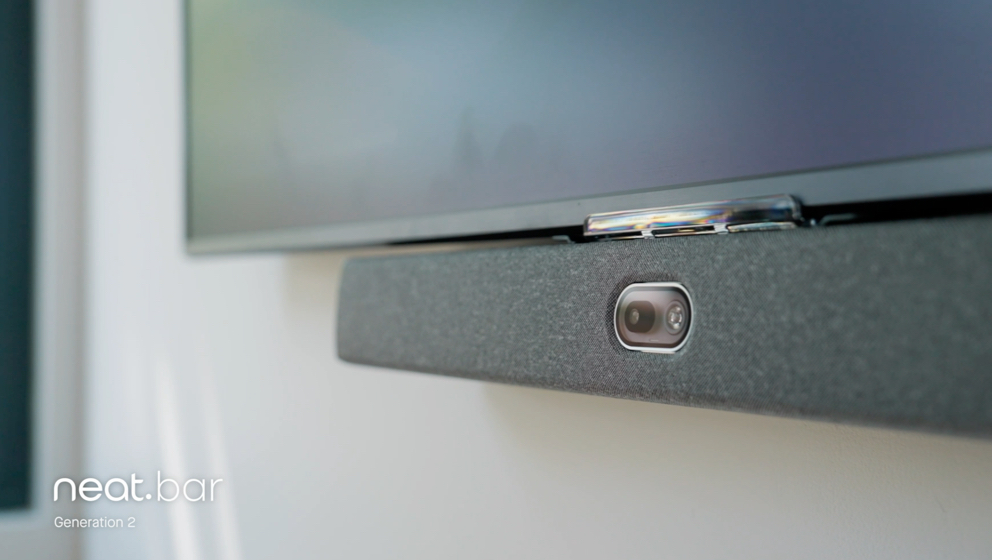
For meeting rooms of all sizes, Neat Bar Generation 2 delivers adaptive microphone arrays, high-quality speakers, and intelligent processing that help participants hear and be heard clearly while reducing common audio distractions.
For more collaborative spaces, Neat Board 50 combines video conferencing, wireless content sharing, digital whiteboarding, a multi-touch display, and integrated audio into one device. This reduces setup complexity while providing a consistent experience for both in-room and remote participants.
Supporting every device are Neat Experiences—a collection of proprietary technologies that intelligently optimise audio, video, framing, and meeting equity throughout every meeting. Features such as Neat Boundary help define active meeting areas, enabling devices to focus on relevant participants while reducing distractions from surrounding spaces.
As organisations increasingly support multiple collaboration platforms, Neat Open gives businesses the flexibility to choose the applications and meeting experiences that best suit their workplace without compromising the quality of collaboration.
Together, these technologies help create meeting spaces where conversations feel natural, participants remain engaged, and audio issues become far less common.
Perhaps it’s time to book a demo and experience them for yourself.
Frequently asked questions
Why can I hear myself in my headset?
The most common reasons are sidetone or echo. If you hear your voice immediately, it’s usually sidetone—a normal feature that lets you hear yourself naturally. If you hear your voice after a short delay, it’s more likely to be an echo caused by your audio configuration or meeting setup.
Is sidetone a good thing?
For many people, yes. Sidetone helps conversations feel more natural and prevents users from speaking too loudly when wearing noise-isolating headphones. Whether you keep it enabled comes down to personal preference.
Should I turn sidetone off?
Not necessarily. If the audio sounds natural and isn’t distracting, sidetone is usually working as intended. Many users actually find it improves comfort during long meetings.
What’s the difference between sidetone and echo?
Sidetone is an intentional, real-time playback of your own voice through your headset. Echo is an unwanted delayed repetition of your voice that usually indicates an audio problem.
Why do other people hear an echo during meetings?
This is often caused by sound from speakers being picked up by microphones, incorrect audio routing, or poor room acoustics. Using headsets or meeting systems with effective echo cancellation can significantly reduce the problem.
Can video conferencing software cause echo?
Yes. Incorrect microphone or speaker settings, outdated software, or conflicts between multiple audio devices can all contribute to echo during video meetings.
Does AI improve meeting audio?
Yes. Many modern collaboration systems use AI to support echo cancellation, noise suppression, voice enhancement, and intelligent microphone processing, helping meetings sound clearer with less manual adjustment.
Sources
- Sidetone, Wikipedia, https://en.wikipedia.org/wiki/Sidetone
- Why Can I Hear Myself in My Headset?, Soundcore, https://www.soundcore.com/blogs/earbuds/why-can-i-hear-myself-in-my-headset
- Global Workplace Survey, Gensler Research Institute, https://www.gensler.com/gri
- ICASSP 2023 Acoustic Echo Cancellation Challenge, Microsoft, https://www.microsoft.com/en-us/research/publication/icassp-2023-acoustic-echo-cancellation-challenge